The MyGymDesk connector for ChatGPT
ChatGPT gym management software: MyGymDesk inside ChatGPT
MyGymDesk is ChatGPT gym management software in the practical sense: connect it once, and ChatGPT reads your gym's members, classes, payments and reports, and can make ten kinds of change for you. Every change is previewed first, and your own MyGymDesk login decides what ChatGPT can see and do.
The MyGymDesk app is coming soon to the ChatGPT app directory. Connect it today through ChatGPT's developer mode.
Reviewed
How the ChatGPT gym management software connection works
MyGymDesk runs a connector for AI assistants at https://mcp.mygymdesk.com/mcp. ChatGPT talks to it through the Model Context Protocol (MCP), the open standard AI apps use to call tools in other software. When you ask a question about your gym, ChatGPT picks the right MyGymDesk tool, MyGymDesk answers from your records, and ChatGPT writes the reply around those figures.
You connect once. ChatGPT sends you to a MyGymDesk sign-in page, you log in with your own MyGymDesk login, pick the gym if your login works at more than one, and approve. From then on ChatGPT acts as you: it sees the branches and screens your role sees, and nothing more.
Your data stays in MyGymDesk. Nothing is copied into ChatGPT ahead of time; each answer is read when you ask, from the same figures your dashboard and Reports screens show.
The 37 tools, by name
ChatGPT gets 37 MyGymDesk tools. 27 of them only read: 17 reads and 10 previews. The other 10 each make one kind of change, and only after their own preview.
17 tools that read
- Who am I: your name, your business, the product and your role.
- Today at a glance: check-ins, who is in, class bookings against places, personal training and revenue collected today.
- Member lookup: one member by name, member code or phone number, with plan, expiry, dues and visits.
- Expiring soon: memberships and class packages ending in the next 1 to 31 days that haven't been renewed.
- Dues outstanding: who owes money, oldest first, the same list and total as the Payment Due list.
- Inactive members: members with an active plan and no visit for 7 to 180 days.
- Revenue and collections: revenue against the previous period, what it was paid for, and collections by mode (cash, UPI, online, card, other).
- Class schedule: each session's time, class, trainer, bookings against places and the waitlist, for up to 14 days.
- PT summary: personal training delivered, no-shows and sessions booked, per trainer.
- Leads and follow-ups: open leads, new leads and conversions, and the follow-ups due today or overdue.
- Renewals and churn risk: renewals due in the next 1 to 31 days, and who has also stopped visiting.
- Staff on shift: which staff have checked in today and who is in now.
- Device status: whether each biometric device is online and when it last made contact.
- Attendance report: check-ins by day, weekday and hour, and visits per member.
- Members report: active, expired and inactive counts, by plan and branch, plus new and frozen members.
- Payments report: payments received in a period, or one member's payment history.
- Expenses and profit: expenses by category, revenue, profit and margin, as Profit & Loss shows them.
10 changes, each with its own preview
- Book a member into a class.
- Schedule a class session or a weekly series.
- Check a member in.
- Add a lead.
- Log a follow-up response.
- Extend a membership.
- Freeze a membership (freezes without a fee).
- Cancel a class session, with no penalty to the booked members.
- Send a payment reminder for one bill.
- Create a WhatsApp template and submit it to Meta, for a gym that sends from its own WhatsApp number.
Preview first, then the change
Every change takes two steps. First ChatGPT calls the change's preview, which works out who and what would change, the before and after, and who would be told, and changes nothing. Then, once you have said yes, ChatGPT makes the change with that preview. A preview is good for 10 minutes and can be used once; if anything it showed has changed in the meantime, the change is refused and a new preview is needed.
All ten change tools ask first, with no exceptions. ChatGPT shows the preview and asks “Shall I go ahead?”, and the change waits for your yes, whether it is a class booking, a new lead, an extension or a WhatsApp template. Here is one where the owner said no:
You: Extend Omkar Joshi's membership by 7 days.
ChatGPT's reply
Preview: Omkar Joshi's Gym Membership – Quarterly will be extended by 7 days, from 4 Dec 2026 → 11 Dec 2026. Nobody will be messaged. Shall I go ahead?
You: No, leave it as it is.
What happened: Nothing was changed.
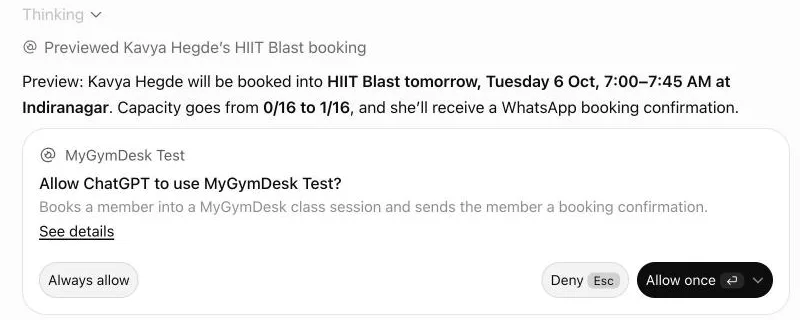
ChatGPT can add its own approval card on top, depending on your ChatGPT settings. In the screenshot above, ChatGPT asked “Allow ChatGPT to use MyGymDesk Test?” before the booking. The owner chose Deny, and ChatGPT replied: “The booking was previewed, but the final MyGymDesk approval was declined, so Kavya Hegde was not booked.”
Permissions, branches and privacy
The connector uses the permissions you already set in MyGymDesk. A question about revenue needs the role to see reports; a check-in needs the check-in permission; a trainer asking about personal training sees only their own sessions. Staff who see only their own leads in MyGymDesk get only their own leads in ChatGPT.
Some details never leave MyGymDesk through the connector: member phone numbers in answers, anyone's pay, commissions, bank or ID details, passwords, single expenses and who was paid. Expenses appear as category totals. The gym always comes from your sign-in, so a question that names another business still gets only your own gym's data.
MyGymDesk keeps a record of each request the connector makes: which tool, the details it was given, the outcome and the time. You can end a connection at any time from Connected AI apps in MyGymDesk, or from ChatGPT's settings, and connect again whenever you like.
What stays in the MyGymDesk app
Money movements and record-keeping stay on the full app screen: recording payments and refunds, creating bills and invoices, deleting anything, exporting member lists and changing settings. When we asked ChatGPT to record a cash payment, it said payments can't be recorded through this connection and pointed to the MyGymDesk app, without looking anyone up first.
Connect MyGymDesk to ChatGPT
- In ChatGPT, open Settings and turn on developer mode.
- Add a new app and give it the MyGymDesk server URL:
https://mcp.mygymdesk.com/mcp - Sign in with your MyGymDesk login, pick your gym if asked, and approve.
- Start a chat with MyGymDesk added, and ask your first question.
The MyGymDesk app is coming soon to the ChatGPT app directory. Every step, permissions and how to disconnect: Connect MyGymDesk to ChatGPT.
What the connector costs
The connector is included on Pro and Enterprise; Starter and Growth can add it for ₹300/month + GST or ₹3,000/year + GST.
MyGymDesk itself comes with a free 7-day trial, and no credit card is needed to start.
See plans and pricingFrequently asked questions
What is ChatGPT gym management software?
Can ChatGPT change things without asking me?
Does it work with more than one branch?
How much does the connector cost?
How do I add it to ChatGPT?
Keep reading
- ChatGPT for gym owners
A day in a gym owner's life with MyGymDesk connected to ChatGPT: the morning check, renewals, quiet members and desk bookings.
- The MyGymDesk Claude connector
How the Claude connector works: the directory listing, custom setup, Team and Enterprise, the tools by group, permissions and privacy.
- Gym reports in ChatGPT
Revenue, payments, attendance and busiest hours, members by branch, PT by trainer, and profit and loss, read from your Reports screens.
ChatGPT is a trademark of OpenAI. Claude is a trademark of Anthropic. MyGymDesk is not affiliated with or endorsed by either.
Put your own gym in the chat
Start a free 7-day MyGymDesk trial, or book a demo and walk through the app with our team.