
Switching gym software is straightforward if you follow the right order of steps. Export your data first, clean it before you import, run both systems briefly in parallel, re-enrol your biometric devices, tell your members what is changing and then watch the first week's renewals closely. Done in that sequence, most gyms complete a migration without a single member noticing the change.
This checklist walks you through each stage in plain terms—what to export, how to clean it, how to pick a cut-over date that minimises disruption, and what to check afterwards. It is written for Indian gym owners and managers switching from any existing system to new gym management software.
What Data Should You Export Before You Switch Gym Software?
Export everything that has a financial or operational consequence before you touch the new system. Leaving data behind is the most common migration mistake, and it is much harder to fix after the cut-over.
Minimum export list
- Member profiles — full name, mobile number, email address, emergency contact, date of birth, photo
- Memberships — plan name, start date, end date, amount paid, payment method
- Outstanding dues — balance owed per member, due date
- Membership freezes — freeze start, freeze end, reason
- PT packages — package name, total sessions, sessions used, sessions remaining, validity date, assigned trainer
- Class packages — package name, total credits, credits used, credits remaining, validity date
- Attendance history — at least the last six months, per member per day
- GST invoices — all tax invoices for the current financial year, for GSTR-1 filing
Ask your current software provider for a CSV or Excel export of each of these. Most providers will give you at least member and membership data; chase them for PT packages and dues separately if they do not appear in the default export.
How Do You Clean the Data Before Importing?
Raw exports almost always have errors. Importing dirty data means those errors move into your new system and stay there.
Clean your data in this order:
- Standardise mobile numbers. Strip spaces, dashes and country codes so every number is a plain ten-digit mobile number. Remove landline numbers from the mobile column.
- Find duplicates. Search by mobile number first, then by name. Keep the record with the more complete information; note the other record's membership history and merge it manually after import.
- Check membership dates. Any membership whose end date has already passed is an expired member. Mark them separately so you can decide whether to import them as expired or archive them.
- Reconcile dues. Cross-check the dues column against your payment register. Correct any figure that does not match before you import.
- Validate PT session counts. For every PT package, confirm that sessions used plus sessions remaining equals the total package size. Fix any mismatch with the trainer's own session log.
- Remove test records. Delete any member created during software demos or staff training in your old system.
Save the cleaned file with a version number (e.g. members_clean_v2.csv) so you always know which version was imported.
How Do You Choose the Right Cut-Over Date?
The cut-over date is when you stop entering data in the old system and start using the new one for all live operations. Pick the wrong date and you either miss renewals or double-enter a week of transactions.
Rules for choosing the date:
- Avoid the last three days of a month. Renewals cluster there and you do not want to process them in two systems.
- Avoid dates immediately after a festival rush. Member volumes are high and staff attention is split.
- Choose a date when the coming seven days have fewer renewals than usual — pull a renewals-due report from your old system first.
- Give yourself at least two weeks between completing your data clean and the cut-over date. That is time to set up the new system, train staff and import data without rushing.
A Monday morning is a clean restart: staff begin the week in the new system and habits form faster.
Should You Run Both Systems at the Same Time?
Run both systems in parallel for a short period — typically five to ten days — but with strict rules about which system is authoritative.
Parallel-run rules:
- The new system is authoritative for all new transactions from day one of the cut-over: new members, renewals, payments and class bookings.
- The old system is read-only. Staff may look up historical data but must not enter any new transaction in it.
- Assign one staff member to reconcile both systems daily during the overlap. They compare total active members, total dues and that day's renewals. Any discrepancy gets resolved before the next day.
- End the parallel run as soon as you are confident, and no later than ten days in. Prolonged parallel running increases the chance of errors, not the chance of catching them.
Re-Enrolment Checklist for Biometric Devices
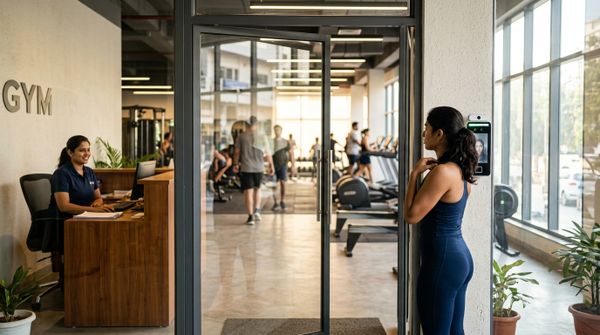
Biometric devices do not migrate automatically. Member fingerprints or face templates stored on the device are linked to the old software's member IDs, which will not match the new system's IDs. Plan for re-enrolment before the cut-over.
Steps:
- List every device at every branch — model, firmware version and the number of enrolled members.
- Confirm which devices your new software supports. MyGymDesk supports compatible eSSL and ZKTeco biometric devices (fingerprint and face); the full list of supported devices is at /biometric-machines.
- On the day of cut-over, clear the old member templates from each device.
- Connect the device to the new software and re-enrol members at the front desk over the first few days. Use a QR-code check-in as the fallback while re-enrolment is in progress — it keeps the door moving without biometrics.
- Re-enrol staff on the devices too; their access links to the new system as well.
- Verify that membership validity is correctly sent to the device so expired members are blocked automatically on supported firmware.
Set a deadline — ideally the end of the first week — by which all active members are re-enrolled. Track it on a simple sheet: member name, re-enrolled (yes/no), date.
How Do You Tell Members About the Switch?
Most members do not care which software you use. They care about three things: can they check their membership, will their payments go through and will they lose their class credits or PT sessions.
Member communication template (send two to three days before cut-over):
"Hi [Name], we are upgrading our gym management system from [date]. Your membership, PT sessions and class credits have been transferred. You will receive a new login link for the member app by [date]. Payments will work as usual through UPI and cards. If anything looks wrong, please speak to our front desk or reply here."
Send this via WhatsApp — the channel most Indian gym members read quickly. Follow up with the member app login link on cut-over day.
Additional steps:
- Pin a notice at the front desk for walk-in members who miss the WhatsApp message.
- Brief every trainer so they can answer member questions about PT session balances.
- Remind members on PT packages to verify their session count on the new member app within the first week.
What Should You Check in the First Week After Switching?
The first seven days after cut-over are when errors surface. Check these things every day.
Daily checks (first seven days):
- Renewals due today — did every renewal that was due get processed in the new system? Compare against the list from your old system.
- Dues balance — does total outstanding dues in the new system match what you carried over?
- Attendance — are check-ins being recorded correctly (QR or biometric)?
- PT session counts — spot-check five PT members each day; confirm their remaining sessions match what was imported.
- New member onboarding — any new member who joins during this week should be entered only in the new system.
End-of-week reconciliation:
- Total active memberships in new system vs. your clean import file.
- Total invoices raised vs. total payments received for the week.
- Any member who reported a problem — resolved or still open?
Keep a simple log. If something does not reconcile, fix it before the second week starts.
Example: What a Migration Week Looks Like
The figures below are illustrative only.
| Day | Task |
|---|---|
| Day −14 | Export all data from old system; begin data cleaning |
| Day −10 | Cleaned CSV ready; create accounts in new system |
| Day −7 | Import members, memberships, dues, PT and class packages |
| Day −5 | Staff training on new system; set up WhatsApp reminders |
| Day −3 | Send member communication via WhatsApp |
| Day 0 (Cut-over Monday) | New system goes live; old system becomes read-only; clear biometric devices |
| Days 1–5 | Re-enrol members on biometric devices; daily reconciliation |
| Day 7 | End-of-week reconciliation; close parallel period; old system access revoked |
FAQs
How long does it take to switch gym software?
Most gyms complete the full migration in two to three weeks: one week to export and clean data, a few days to set up and import into the new system, and one week of parallel running and re-enrolment. The actual cut-over itself takes a single day.
Will members lose their PT sessions or class credits when I switch software?
Not if you export PT session balances and class credit balances before the cut-over and import them accurately into the new system. Validate the numbers against your trainer's own session log before importing, and ask members to confirm their balance in the member app within the first week.
Do I need to re-enrol biometric devices when I change gym software?
Yes. Biometric templates are linked to member IDs in the old software. When you switch, the IDs change and templates must be cleared and re-enrolled in the new system. Use QR check-in as a fallback while re-enrolment is in progress so access is never disrupted.
What is the safest cut-over date for a gym software migration?
A Monday at the start of a quiet week, away from month-end and festival rushes, is the safest choice. Pull a renewals-due report from your old system and pick a week where fewer renewals fall in the first three days, giving you time to settle before the volume picks up.
What happens to GST invoices from the old system after migration?
Your old GST invoices remain valid records in the old system. Export them as PDFs or a spreadsheet before you close access. You need invoices from the current financial year for GSTR-1 filing; confirm the exact requirement with your chartered accountant.
How MyGymDesk Helps
MyGymDesk gym management software lets you import members, memberships, PT packages and class packages from a spreadsheet (CSV), so the cleaned data you prepare in this checklist goes straight in without manual re-entry. Member profiles carry start and end dates, dues, freezes and renewals; biometric attendance works with compatible eSSL and ZKTeco devices; and WhatsApp automation sends renewal reminders and payment receipts from day one, so nothing slips through during the transition period. Start a free trial — no credit card required — or book a demo to see the import flow before you commit.